jueves, 10 de octubre de 2019

How to reset Kali Linux root password

https://linuxconfig.org/how-to-reset-kali-linux-root-password

How to reset Kali Linux root password


Objective

This guide will provide you with an information on how to reset lost or forgotten root ( administrator ) password on Kali Linux.

Operating System and Software Versions

  • Operating System: - Kali Rolling Release

Requirements

Physical access to your computer or virtual machine with the Kali Linux installation is required.

Difficulty

EASY

Conventions

  • # - requires given linux commands to be executed with root privileges either directly as a root user or by use of sudo command
  • $ - requires given linux commands to be executed as a regular non-privileged user

Instructions

Step 1: Boot Into GRUB menu
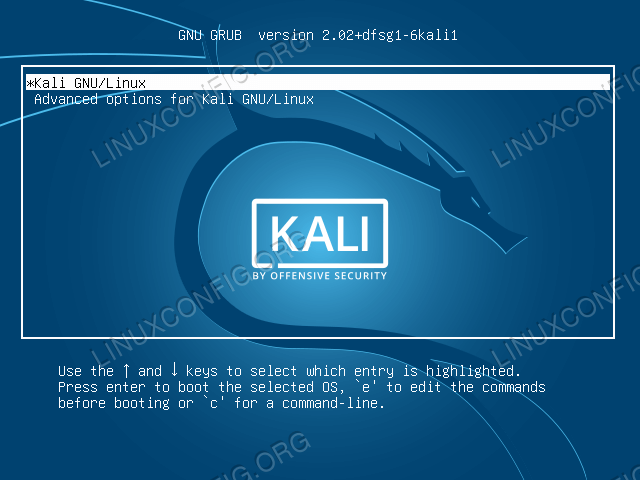
Boot to Kali GRUB menu
Reboot your Kali Linux system into the GRUB boot menu. Highlight the default boot menu you are usually booting from and press the e key in order to edit this boot menu entry.

$$$ Looking for LINUX ADMINISTRATOR ! $$$

BLUE SKY STUDIOS are looking for Linux Administrator to maintain and support the Studio's 450+ production Linux workstations, including daily interactions with the Studio’s digital animation artists. 
LOCATION: Greenwich, Connecticut, USA

APPLY NOW

Step 2: Edit GRUB menu

Enter GRUB edit mode
Once you entered the GRUB menu edit mode you will be presented with the following window. Scroll down until you hit the line starting with keyword linux.
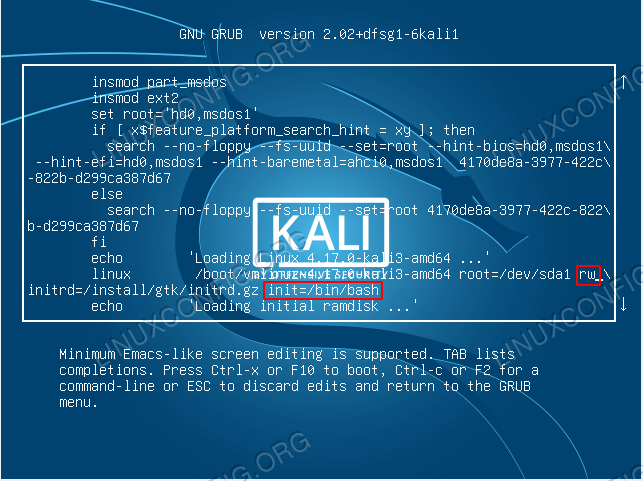
Edit GRUB menu entry
After you have located the appropriate boot entry as specified by the previous step, use navigational arrows to look for keyword ro and replace it with keyword rw. Next, on the same boot entry find keyword quiet and replace it with init=/bin/bash.

Step 3: Check RW permissions on root partition
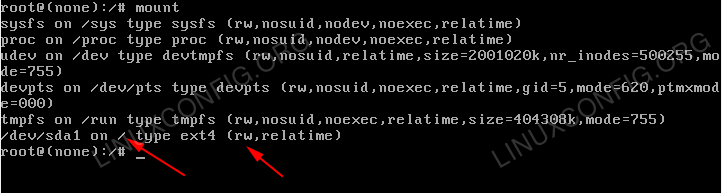
Confirm root partition permissions
Type mount command and look for / root mount partition. Confirm that this partition is mounted with rw permissions.


Step 4: Reset Kali root password

Reset root password - kali linux
At this point we are ready to reset the root user password. Type passwd command and enter your new password. Enter the root password again to verify. Press ENTER and confirm that the password reset was successful.

Step 5: Reboot Kali

At this stage you are done. Simply reboot your system or continue booting using the following linux command:
root@(none):/# exec /sbin/init

Troubleshooting

Enter new UNIX password:
Retype new UNIX password:
passwd: Authentication token manipulation error
passwd: password unchanged
Your root partition is mounted read-only. Try:
# mount -o remount,rw /
to resolve this issue.
[ end Kernel panic - not syncing: Attempted to kill init! exit code=0x0007f00
Make sure that you removed splash boot option when editing grub's menu item.
When trying to reboot with reboot command I get:
Failed to connect to bus: No such file or directory
Failed to talk to init daemon.
Ignore, and reboot with:
# exec /sbin/init

How to Reset the Root Password in Linux Ubuntu

https://www.maketecheasier.com/reset-root-password-linux/


How to Reset the Root Password in Linux


1. Reset Lost Root Password from the Grub Menu

1. First and foremost, to recover a lost root password, we need to restart the Linux host, assuming you can’t remember the password for root (or superuser).
2 . Once the GRUB page appears, quickly select the “*Advanced options for GNU/Linux” option by pressing the down arrow key and Enter button.
grub-advanced-options
3. Now press e to edit the commands.
You need to modify it or change it from “read-only” mode to “read-write” mode. Find the line beginning with “Linux.” After, look for “ro,” and change it “rw.” Add init=/bin/bash at the end of the line.
grub-edit-kernel-loading-menu
4. Press F10. This will display a screen with a prompt.
grub-boot-bash-screen
5. Mount your root filesystem in read-write mode:
6. You can now reset your lost root password by using the following command:
Alternatively, you can change the password of the super user with the command:
grub-bash-screen-reset-password
Once you are done, type:
to exit the prompt and reboot the computer.

2. Reset Lost Root Password Using Live CD

If you have a Linux Live CD (or USB), then you can boot into it and use it to reset the root password, too. In our example we will use a Ubuntu Live CD.
1. Download the latest version of Ubuntu, and create a bootable Live CD/USB from it. Boot your system from it.
2. On the display screen select “Try Ubuntu.” This will bring you to the Live CD desktop.
ubuntu-live-cd-try-ubuntu
3. Open the terminal, and type the following command to become root:
4. Next, we need to find out the location of the hard disk partition. Use the following command:
In most cases it will be “/dev/sda1,” though it can differ depending on how your hard disk is partitioned.
5. Mount the hard disk partition of the system to be recovered using the following command:
ubuntu-livecd-mount-partition
6. At this point we need to jail ourselves in the “mnt/recovery” directory. What this means is that we are pretending to be on the regular Linux filesystem. This is simply known as chrooting.
7. Use the following command to reset your root password:
or us:
to reset the password of a superuser.
8. Once completed, exit from the chroot shell:
9. Unmount the root partition:
and exit your root:
10. Lastly, remove the Live CD and reboot into your Linux system.

Conclusion

Changing the root password in Linux is easy, though it requires you to venture into the dark realm of the command line. Do note that anyone who has access to your computer can use this method to reset your superuser or root password. One precaution you can take is to encrypt the whole hard disk so it can’t be booted or mounted so easily.

martes, 8 de octubre de 2019

Resolver un sistema de ecuaciones no lineales en Geogebra - Решить систему нелинейных уравнений в геогебре

Resolver un sistema de ecuaciones no lineales en Geogebra

Решить систему нелинейных уравнений в геогебре

Solve a system of nonlinear equations in Geogebra


Solve({2x + y + z = 20, x² - 2y² + z² = 2, x² + y² - 2z² = -30})

La solución dada por Geogebra es:

{{x = 9.74444949247101, y = -10.1794382250700, z = 10.6905392401300}, {x = 4.31098584431300, y = 5.22027447712601, z = 6.15775383424801}, {x = 10.2445646632100, y = 10.6591637479400, z = -11.1482930743700}}

Numerically Solve a system of nonlinear equations in Wolfram-Alpha - Resolver un sistema de ecuaciones no lineales en Wolfram-Alpha - Решить систему нелинейных уравнений в Wolfram-Alpha

Numerically Solve a system of nonlinear equations in Wolfram-Alpha -
Resolver Numericamente un sistema de ecuaciones no lineales en Wolfram-Alpha -
Решить систему нелинейных уравнений в Wolfram-Alpha

NSolve[{2*x+y+z=20,x^2-2*y^2+z^2=2,x^2+y^2-2*z^2=-30}, {x, y,z}]


x≈4.31099 - 1.18424×10^-16 i ∧ y≈5.22027 + 5.16153×10^-15 i ∧ z≈6.15775 - 4.92468×10^-15 i

x≈9.74445 + 1.18424×10^-15 i ∧ y≈-10.1794 + 4.49024×10^-14 i ∧ z≈10.6905 - 4.72709×10^-14 i

x≈10.2446 - 1.18424×10^-15 i ∧ y≈10.6592 - 5.37863×10^-14 i ∧ z≈-11.1483 + 5.61547×10^-14 i


https://www.wolframalpha.com/input/?i=NSolve%5B%7B2*x%2By%2Bz%3D20%2Cx%5E2-2*y%5E2%2Bz%5E2%3D2%2Cx%5E2%2By%5E2-2*z%5E2%3D-30%7D%2C+%7Bx%2C+y%2Cz%7D%5D

Solve a system of nonlinear equations in Wolfram-Alpha - Resolver un sistema de ecuaciones no lineales en Wolfram-Alpha - Решить систему нелинейных уравнений в Wolfram-Alpha

Solve a system of nonlinear equations in Wolfram-Alpha
Resolver un sistema de ecuaciones no lineales en Wolfram-Alpha
Решить систему нелинейных уравнений в Wolfram-Alpha


Se abre la página de Wolfram y se copia lo siguiente:

FindRoot[{ exp(x) + y + z = 100, x + y^2 + z = 100, x + y^2 + exp(z) = 100}, {{x, 1.}, {y, -2.},{z, 1.}}]


La respuesta es:
{x->4.69839, y->-9.76246, z->-9.00484×10^-9}


https://www.wolframalpha.com/input/?i=FindRoot%5B%7B+exp%28x%29+%2B+y+%2B+z+%3D+100%2C+x+%2B+y%5E2+%2B+z+%3D+100%2C+x+%2B+y%5E2+%2B+exp%28z%29+%3D+100%7D%2C+%7B%7Bx%2C+1.%7D%2C+%7By%2C+-2.%7D%2C%7Bz%2C+1.%7D%7D%5D+