jueves, 18 de septiembre de 2025

TI83 - Programming the Formula to find the Volume of a Cylinder given Radius and Height

 https://education.ti.com/html/eguides/graphing/83PremiumCE/FR/content/eg_83prgm/m_getstarted/getstartedactivity.HTML

Programming the Formula to find the Volume of a Cylinder given Radius and Height


Getting Started Activity:

Programming the Formula to find the Volume of a Cylinder given Radius and Height

Given the Radius and Height of a cylinder, you can compute the Volume using this formula. This activity allows you to write a program to prompt for the values of the Radius and Height of a cylinder so that you can then compute the Volume.

The formula for the volume of a cylinder is

V = p R2 H cubic units

Where

V = Volume

R = Radius of the base

H = Height of the cylinder

This program could be useful for a variety of activities such as:

•Providing a table with many values of Radius and Height and having students fill out the Volume column
•Running a program to fill in the values for Volume in the table

Some questions to investigate:

•(If formula is unknown to the student), what pattern do you see in the Volume numbers to make a good guess at the formula?
•What is the largest Volume found?
•How much does the Volume increase if the Height increases by one unit?
•How much does the Volume increase if the Radius increases by one unit?

Running a program repeatedly as a tool allows quick analysis for higher-level thinking problems.

Topic Links

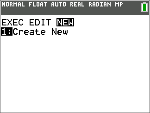
Creating a NEW Program

1.Press ¼ ~ ~ to display the PRGM NEW menu.

Naming the Program


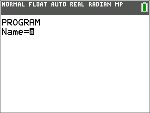
1.Press Í to select 1:Create New.

The Name= prompt is displayed, and [2nd] [A-lock] (alpha-lock) is on.

Tip: The alpha characters are upper right above keys on the keypad and are pasted when [alpha] or
[2nd] [A-lock] is pressed before pressing the primary key.

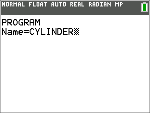
2.Press C Y L I N D E R, and then press Í to name the program CYLINDER.

Tip: Program names can have a maximum of eight characters. First character must be a letter. Notice the checkerboard cursor on the screen when the maximum is reached.

3.Press Í and you are now in the program editor.

The colon ( : ) in the first column of the second line indicates the beginning of a command line.

Note: On the calculator, the command lines are not numbered as when using the
TI Connect™ CE Program Editor.

Entering Commands

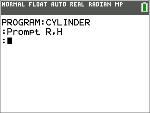
Whoever uses your program will have to input the Radius and Height values. You will use the Prompt command.


1.Press ¼ ~ to access the I/O (Input/Output) command menu.
2.Press † to highlight the Prompt command.

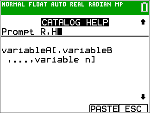
Note: For this example, you will use the Catalog Help feature to illustrate this built-in argument syntax help in the calculator. If you already know the arguments for a command, you can select a menu item and paste them to the Program Editor without using Catalog Help.

3.The Prompt menu item number is highlighted so press Ã. Use the Catalog Help syntax editor (if needed). The syntax for the arguments of Prompt is shown below the editing line as variables separated by commas. Anything within a square bracket [ ] is an optional argument, so Prompt needs at least one variable name.
4.Press ƒR ¢ ƒ H to enter the variable names for Radius and Height.
5.Press [PASTE] (r) to paste the command with the arguments back to the Program Editor. Press [ESC] ([graph]) to return to the last cursor location without pasting.

6.Back on the Program Editor, press Í to move the cursor to the next command line.

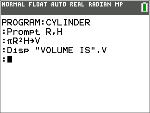
Store the formula for the volume of a cylinder:

7.To enter the expression B R2 H and store value to the variable V, press y B ƒR¡ ƒ H ¿ ƒ V Í.

Displaying the Calculated Volume.

Create a command line to display the calculated volume:


1.Press ¼ ~ 3 to select 3:Disp from the PRGM I/O menu.

Disp is pasted to the command line.

Tip: Remember you can press [+] on most commands to use the Catalog Help syntax editor to see the correct arguments for commands.

2.Press y 7 W VOLUME IS W ƒ ¢ ƒ V Í

This will display the text VOLUME IS on one line and the calculated value of V on the next line of the Home Screen when you run the program.

Running a Program

Your program is complete! Now run the program from the Home Screen.


1.Press y 5 to display the Home Screen.
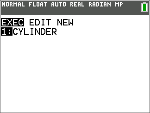
2.Press ¼ to display the PRGM EXEC menu.

The items on this menu are the names of stored programs.

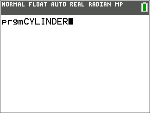
3.Press Í to paste prgm CYLINDER to the current cursor location. (If CYLINDER is not item 1 on your PRGM EXEC menu, move the cursor to CYLINDER before you press Í.)

Finding the Volume

To find the volume of the cylinder with Radius 1.5 cm and Height 3 cm, complete the following steps.


1.Press Í to execute (run) the program.
2.When prompted for R, enter 1.5 and press Í
3.When prompted for H, enter 3 and press Í.

The text VOLUME IS, the value of V, and Done are displayed.

The volume of the cylinder is displayed to 8 decimal places as
21. 20575041 cubic cm.

4.At this point, to rerun the program, press Í and repeat for different values of R and H.

TI83 - Arduino TI Calculator Linking Library - Calculadora TExas TI83 9.6kbps Serial


https://github.com/KermMartian/ArTICL


https://github.com/jw0k/serial2ti83


serial2ti83

A program for Arduino Uno that makes it possible to connect a TI-83 calculator to a computer

Introduction

This program turns an Arduino Uno board into an adapter between a TI-83 graphing calculator and a computer. In order to use it upload serial2ti83.ino to an Arduino board using the standard Arduino IDE and connect the 2.5mm jack port on the bottom of TI-83 to Arduino according to the following table:

Jack portArduino
sleeveGND pin
tippin 2
ringpin 3

You can now run some linking program, e.g. TiLP and start exchanging data (upload programs, take screenshots, dump ROM, manage variables, etc.). In case of TiLP make sure to go to File->Change Device first and choose GrayLink cable and TI-83 calc.

Optional: before uploading serial2ti83.ino it is recommended to increase the size of hardware serial buffers to make the connection more reliable. Open HardwareSerial.h from you Arduino installation folder (usually C:\Program Files (x86)\Arduino\hardware\arduino\avr\cores\arduino) and change these 2 lines:

#define SERIAL_TX_BUFFER_SIZE 64
#define SERIAL_RX_BUFFER_SIZE 64

to:

#define SERIAL_TX_BUFFER_SIZE 256
#define SERIAL_RX_BUFFER_SIZE 256

TI83 - Nombres de Variables en la Calculadora Texas TI83: Letras del alfabeto, Variables especiales, Restricciones


En la calculadora TI-83, puedes usar una variedad de nombres de variables al programar, pero hay algunas limitaciones importantes que debes tener en cuenta.


✅ Variables disponibles

🔹 Letras del alfabeto

Puedes usar las letras A a Z como variables individuales:

  • A, B, C, ..., Z

Estas son las variables estándar para almacenar números.


🔹 Variables especiales

  • θ (theta): útil en trigonometría.
  • Ans: almacena el último resultado calculado.
  • Listas: L₁, L₂, ..., L₆ (listas de datos).
  • Matrices: [A], [B], ..., [Z] (matrices).
  • Strings: "Str1", "Str2", ..., "Str0" (cadenas de texto).
  • Funciones Y=: Y₁, Y₂, ..., Y₉ (funciones definidas en el editor Y=).

⚠️ Restricciones

  • No puedes crear nombres compuestos como X1 o TEMP (solo una letra por variable).
  • No puedes usar palabras reservadas como Disp, If, Then, etc., como nombres de variables.
  • Las variables son globales, es decir, se comparten entre programas y cálculos normales.

TI83 - Tamaño de las Listas y Matrices en la Calculadora Texas TI83


 Tamaño de las listas

  • Puedes usar listas como L₁, L₂, ..., L₆ o listas personalizadas.
  • Tamaño máximo: hasta 999 elementos por lista.
  • Cada elemento puede ser un número real.
  • El tamaño está limitado por la memoria RAM disponible (aproximadamente 24 KB en la TI-83).

 Tamaño de las matrices

  • Puedes usar matrices como [A], [B], ..., [Z].
  • Tamaño máximo: hasta 99 filas × 99 columnas, pero en la práctica está limitado por la memoria.
  • Ejemplo común: una matriz de 10×10 ocupa menos de 1 KB.
  • Las matrices deben tener dimensiones definidas antes de usarlas.

 Recomendaciones

  • Si estás trabajando con listas o matrices grandes, es buena idea borrar las que no estés usando con DelVar para liberar memoria.
  • Puedes verificar el uso de memoria en el menú:
    • [2nd] + [MEM] → opción 2: Mem Mgmt/Del → luego selecciona List o Matrix.

TI83 - Crear una Lista en la Calculadora Texas TI83


:ClrHome

:Disp "CREAR LISTA"

:{1,2,3,4,5,6,7,8,9,10}→L₁

:Disp "LISTA L1 CREADA"

TI83 - Programar una Lista en la Calculadora Texas TI83


:ClrHome

:Disp "LISTA CON FOR"

:For(I,1,10)

:  I→L₁(I)

:End

:Disp "LISTA L₁ CREADA"

TI83 - Programar una Matriz 3x3 en TI83 Calculadora Texas


:ClrHome

:Disp "MATRIZ 3x3"

:{3,3}→dim([A])

:For(I,1,3)

:For(J,1,3)

:  randInt(1,99)→[A](I,J)

:End

:End

:Disp "[A] CREADA"

:Disp [A]